



The easiest way to create a table of contents is to use Microsoft Word's built-in Heading Styles (Built-in heading styles) . Microsoft Word has nine heading styles, Heading 1 to Heading 9. You can also create a table of contents based on your own Style.
Word tutorial: Create an automatic table of contents in full you can learn in the following video.

Word tutorial: Automated table of contents
By default Microsoft Word already provides standard templates and standard styles that can be used for writing.
Styles for standard documents: | Short Key |
|
|
Here are the steps to create a table of contents automatically in Microsoft Word 2007/2010.
1. Mark the section to be used as a table of contents with Style Heading
- Select the Title/Subtitle (the section that will be used as a table of contents) by placing the cursor on that section of the paragraph.
- Click Home Tab:


- Select and click the Style Heading that corresponds to the Hierarchy of the article/document (for example, for Chapter I, select Heading 1 and Sub-Chapter, select Heading 2)
- And so on until all the Titles and Sub-Titles that will be used as a table of contents are marked with the appropriate Heading.
Note:

To bring up all the styles list, press Alt+Ctrl+Shift + S

(Press Alt+Ctrl+Shift, while keeping it pressed continue by pressing the letter S).
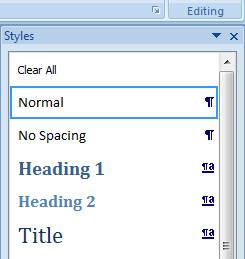
2. Create a Table of Contents
Once all the sections that will be used as a table of contents are marked, you are ready to create a table of contents automatically.
Follow these steps:
- Click where you want to insert the Table of Contents, usually at the beginning of the document.
- On the References tab , in the Table of Contents group :

- click Table of Contents , then select and click the Table of Contents type/style you want. If you want to specify more options - for example, how many Heading levels to use in the table of contents, click Insert Table of Contents
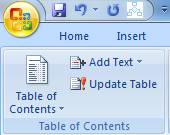
- To open the On the Table of Contents dialog box , do the following:
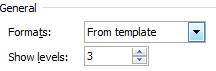
- To change how many Heading levels you want to appear in the table of contents, enter the number you want in the Show Level box , default 3.

- To change the overall appearance of the Table of Contents, click Formats and choose the format that suits you. You can see the Preview view of the format you selected at the top: Print Preview and Web Preview.
- To change the order of levels or choose your Custom Style to be displayed in the table of contents, click Options. Please explore yourself for other options, Modify and Options
Word tutorial: Create an automatic table of contents
Tutorial
If you are interested in the Word Tutorial: Create an automatic table of contents , please subscribe to the Smartstat Channel: https://youtube.com/user/smartstatistik
If you are interested in the Word Tutorial: Create an automatic table of contents , please subscribe to the Smartstat Channel: https://youtube.com/user/smartstatistik
You can learn a list of other Microsoft Word Tutorials at the following link:

